Editorial advisory: This article contains adult sexual wellness and technical guidance intended strictly for readers aged 18 and older. Affiliate disclosure: BestToyChoice is reader-supported. When you buy through links on our site, we may earn an affiliate commission at no extra cost to you. Learn more in our Editorial Policy and Affiliate Disclosure.
People who search for Lovense Connect usually need help pairing a toy, adding a partner, or fixing Bluetooth. On official Lovense pages (checked November 22, 2026), Lovense Remote is the consumer control app, while Connect still appears as a separate pairing app in developer and cam documentation. This guide follows official setup steps and is not a hands-on test.
Lovense Connect vs Lovense Remote: Which App Do You Need?
Understanding the difference between Lovense Connect and Lovense Remote is essential before setting up your toy. Online searches frequently treat lovense connect as a catch-all term for mobile toy control. However, app store listings and official documentation confirm they are distinct programs built for different user groups. Installing the wrong app is the leading cause of setup confusion.
Lovense Remote: The Consumer Control App
Lovense Remote is the primary consumer application distributed by HYTTO PTE. LTD. for iOS and Android. This is the application that individual users and couples need. According to official setup guides, Lovense Remote contains all personal lifestyle controls, including touch sliders, vibration patterns, sound modes, and music synchronization.
Lovense Remote handles all partner features: live two-way control, video chat, voice calls, and reciprocal syncing. In our analysis of Lovense vs We-Vibe, this unified app serves as the core hub for couples separated by distance.
Lovense Connect: Cam Platforms, Bridges and QR Codes
Lovense Connect is a specialized utility app featured primarily in developer documentation, cam-model workflows, and third-party streaming resources. It acts as a local network bridge between physical hardware and desktop computers running streaming software or interactive browser extensions.
During live streams, Lovense Connect receives tipping telemetry and routes triggers to the performer’s toy over Bluetooth. Because Connect omits friend lists, couples chat, and preset libraries, everyday users cannot access partner controls.
How to Connect a Lovense Toy to Your Phone
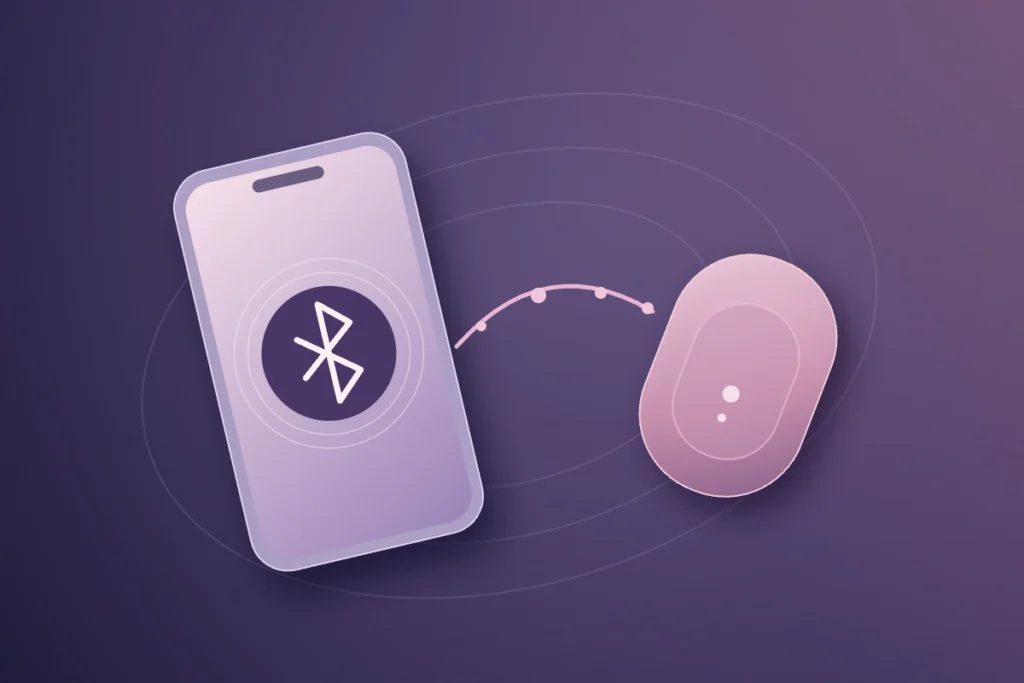
Connecting your toy requires following the manufacturer’s established pairing sequence. Lovense devices use Bluetooth Low Energy (BLE) and pair directly inside the mobile application, rather than through your phone’s native system Bluetooth menu.
Step-by-Step Pairing in Lovense Remote
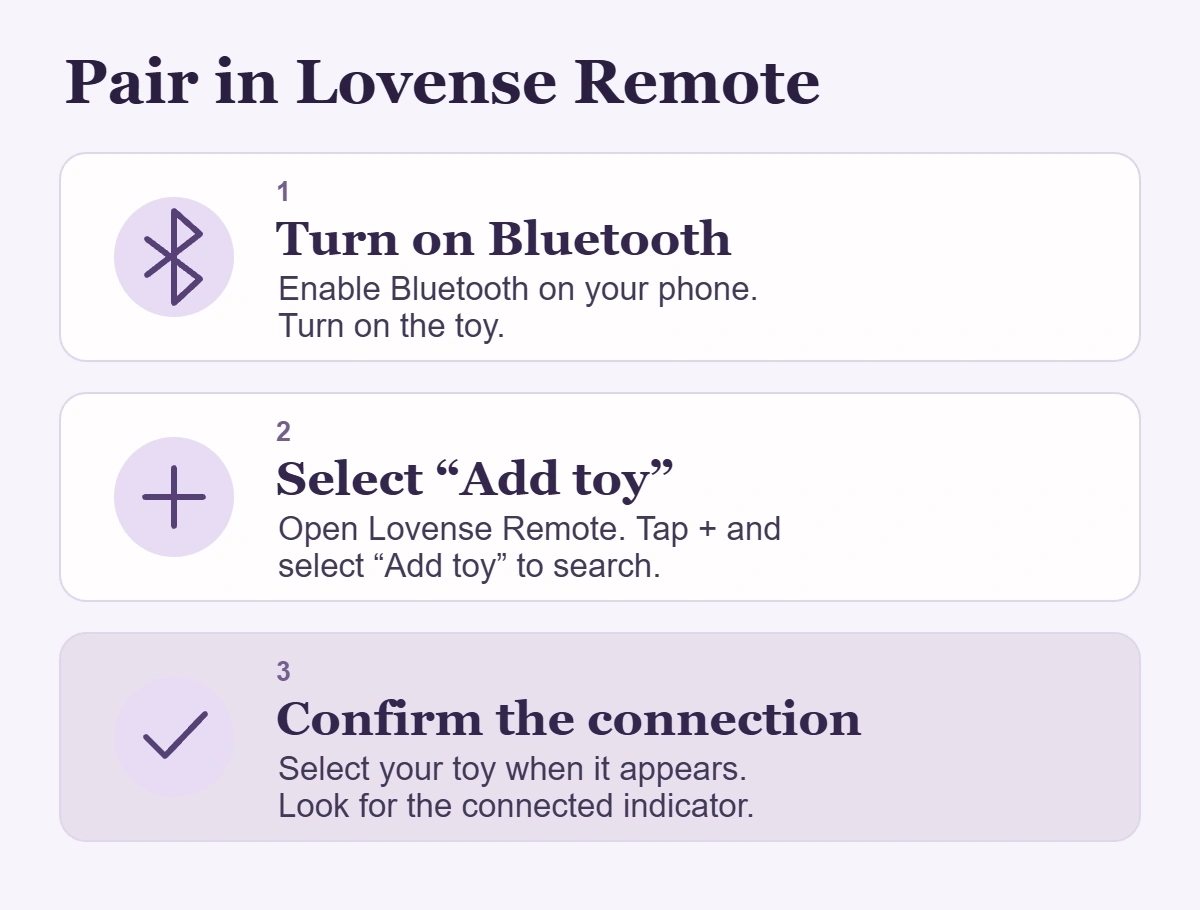
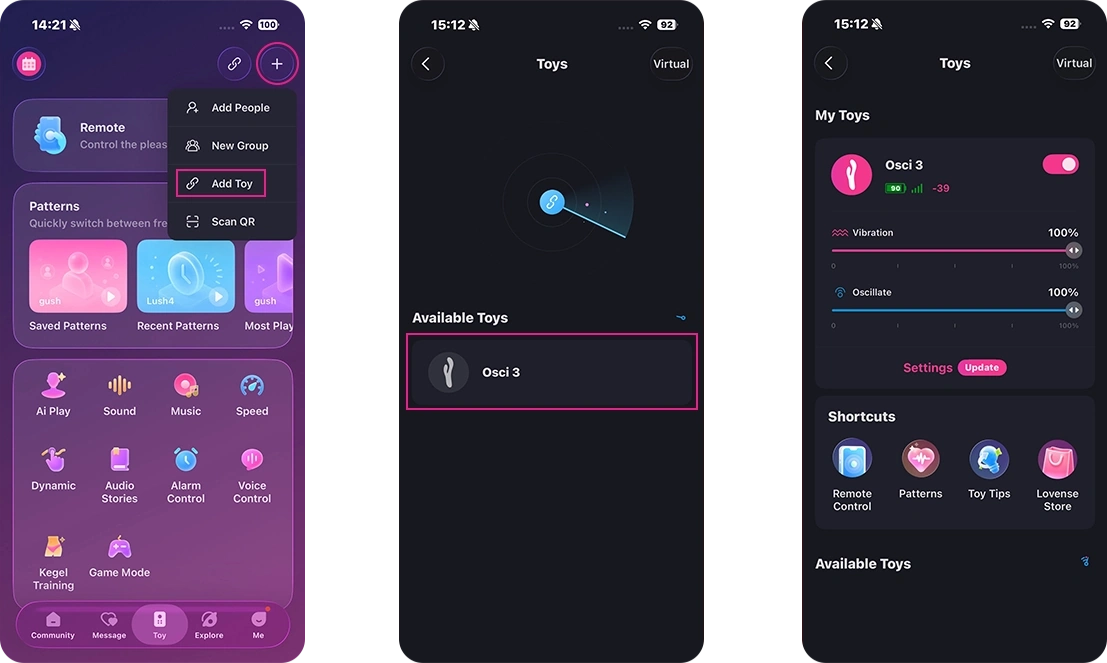
To connect your hardware, follow the six official steps outlined on Lovense’s Remote support portal:
- Turn on the toy: Press and hold the power button for three to five seconds until the LED flashes steadily.
- Enable phone Bluetooth: Turn Bluetooth on in your smartphone settings. Do not pair the toy in the OS menu.
- Open Lovense Remote: Launch the application on your mobile device.
- Tap the plus icon: On the main dashboard, tap the plus (“+”) icon in the top-right corner.
- Select Add toy: Tap “Add toy” to scan for nearby Bluetooth hardware.
- Confirm connection: Select your toy model from the list and wait for the green checkmark to appear.
Keep the toy within one meter during initial pairing to ensure prompt detection.
System Requirements and Bluetooth Permissions
- Apple iOS: Requires iOS 14.2 or newer across iPhone, iPad, and Apple Watch. Bluetooth permissions must be granted when prompted.
- Android: Requires Android 5.0 or newer with Bluetooth 4.0 BLE. Android mandates Location Services be enabled for apps to scan for BLE hardware.
- Desktop: Mac computers support direct pairing over Bluetooth 4.0 BLE. Windows PCs require the proprietary Lovense USB Bluetooth Adapter, or must bridge through a smartphone running Lovense Connect.
Close-Range Controls, Patterns, Music and Sound
Once paired, Lovense Remote provides several close-range input methods for solo sessions or in-person partner play. The interface features a touch grid and linear sliders. Swiping alters vibration frequency and intensity instantly. Users can activate “Loop” to repeat a gesture, or select “Float” to let the software oscillate across programmed curves.
In addition to manual sliders, the application includes four automated sensory modes:
- Music Sync: Plays audio from local files or an integrated Spotify account, pulsing motors to match bass notes and tempo.
- Sound and Ambient Mode: Uses the phone microphone to convert ambient room noise, voices, or music into vibrations, with adjustable sensitivity.
- Speed Mode: Uses the phone accelerometer to increase vibration strength when moving or shaking the device. Official documentation notes this requires active location and motion permissions.
- Pattern Library and Discover: Includes four factory presets and five speed gears, plus a custom drawing tool. Users can also access the “Discover” hub to download over two million community-shared patterns.
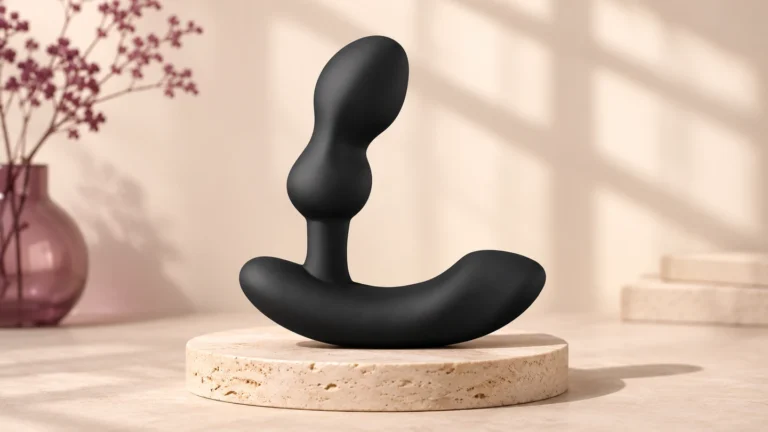
These controls support Lovense’s full lineup, from the prostate-stimulating Lovense Edge 2 and magnetic panty Lovense Ferri to picks in our guide to the best remote control vibrators.
How to Add a Partner and Use Long-Distance Control
Long-distance control is Lovense’s core capability. Partners worldwide can exchange real-time control over the internet, provided both maintain active data connections.
Adding Your Partner in the App
Users frequently ask how to add partner on lovense connect. This procedure takes place inside Lovense Remote rather than Connect. Both partners must set up separate accounts:
- Turn on your toy and pair it with Lovense Remote on your phone.
- Tap the plus (“+”) icon in the top-right corner of the dashboard.
- Select “Add partner” from the menu.
- Search by typing your partner’s registered email or username, or generate a link to share via messaging apps.
- Your partner opens Lovense Remote on their device and accepts the friend request.
Live Control and Invitation Links
After connecting as partners, either person can start a “Live” session from the chat window. When the recipient accepts, the control screen appears, letting your partner adjust sliders and monitor battery status.
Lovense Remote includes voice calling, messaging, and video streaming within the control screen. If a partner lacks the app, a temporary “Control Link” allows web browser control without downloads.
Long-Distance Sync with Max 2, Nora or Calor
Beyond manual sliders, Lovense supports reciprocal hardware telemetry (“toy-to-toy sync”). Movement on one toy directly commands the motor actions of a partner’s device across the internet.
According to brand documentation, this feature is engineered primarily for pairing male strokers and female insertion toys. Linking the stroking and contraction sensors of the Lovense Max 2 with the rotating arm of the Lovense Nora creates reciprocal feedback. Stroking Max 2 speeds up Nora’s rotation, while movements on Nora trigger counter-vibrations in Max 2.
Similar synchronization works with warming strokers like the Lovense Calor and motorized machines like the Lovense Spinel. If only one partner owns a synchronized model, master control can transfer to a partner holding a standard vibrator, such as the Lovense Gush 2, the Lovense Diamo, or the Lovense Hush 2.
How Lovense Connect QR Codes Work
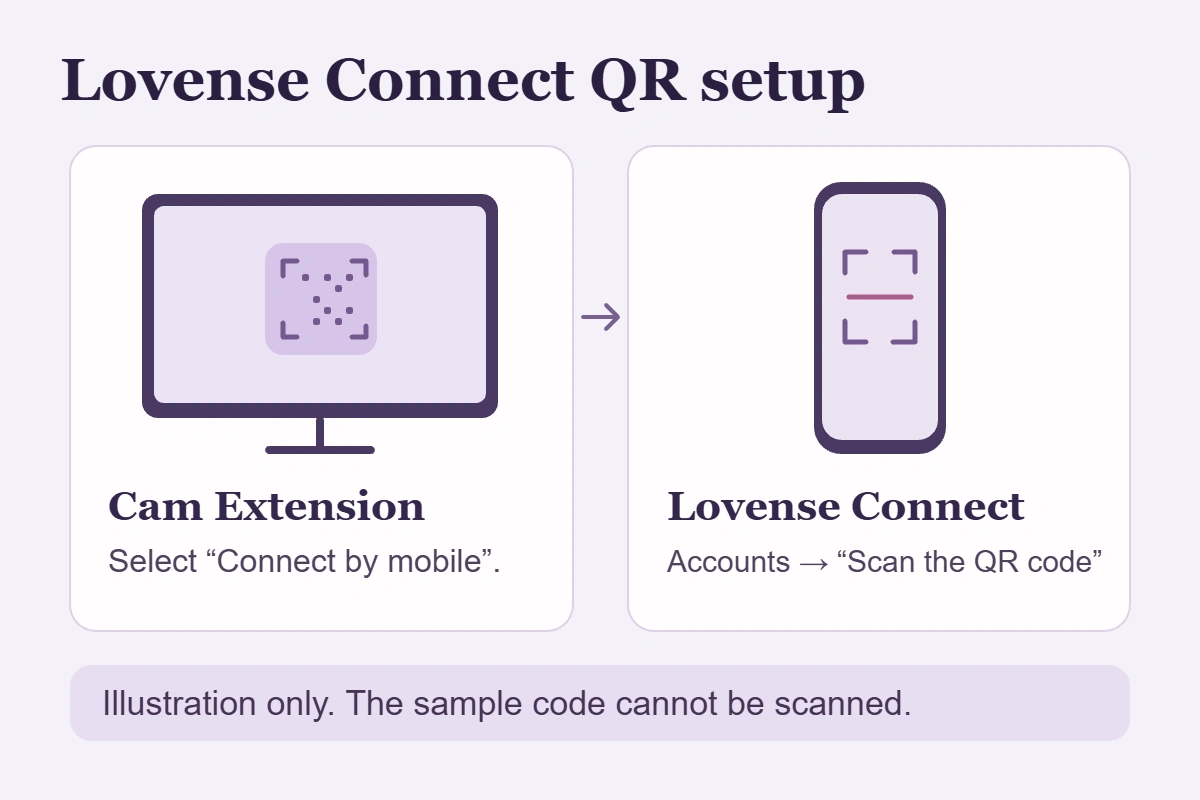
For cam broadcasters, Lovense Connect’s QR-code workflow links hardware to web streaming platforms. Official developer docs explain how this visual handshake creates a connection without manual IP entry.
When preparing a stream, the host platform or Lovense Cam Extension produces an encrypted QR code on the desktop monitor. The broadcaster opens Lovense Connect on their phone, pairs the toy via Bluetooth, and taps “Scan QR.”
Scanning the monitor transfers encrypted WebSocket tokens. Lovense Connect creates a local network socket or cloud bridge. When viewers tip, the platform routes signals through the bridge, triggering vibrations instantly.
For local QR or bridge setups, the phone running Connect and the desktop often need to be on the same Wi-Fi network. A VPN, cellular data, or Apple iCloud Private Relay may interfere with local routing. If pairing stalls, try disabling the VPN or relay and confirming both devices are on the same network, and check Lovense’s official Connect or cam-bridge documentation.
Incognito Window Tip: Broadcasters using private or incognito browser windows must enable “Allow in Incognito” for the Lovense browser extension; otherwise, streaming platforms cannot access the bridge socket.
Lovense advises scanning QR codes only from trusted platforms. Because an active bridge allows outside software to trigger hardware, scanning unverified codes could result in unauthorized motor activation.
Lovense Connect Not Working, and Other Bluetooth Fixes
When toys fail to pair, searches for lovense connect not working and why is my Lovense not connecting to Bluetooth rise quickly. Most issues stem from app confusion, low battery states, or permissions rather than defective hardware.
Check 1: Confirm You Have the Right App Open
First, verify which program you opened. If you want partner controls, pattern presets, or sound modes, launch Lovense Remote, not Lovense Connect. Searching for intimate partner features inside Connect will fail because that application is reserved for cam and bridge operations.
Check 2: Battery Level and Automatic Power Cutoffs
A low battery can cause Bluetooth pairing to fail even if the toy still responds to its physical button. Charge the toy and retry, following Lovense’s official connection guide.
Check 3: Active Bluetooth Lock and Background Devices
Bluetooth Low Energy operates under a single-master rule. A Lovense toy connects to only one device at a time. If previously paired with a nearby tablet, partner’s phone, or PC adapter, that device may hold an invisible lock.
To clear this, turn off Bluetooth on nearby secondary devices, close background apps, or hold the toy’s power button for 10 seconds to reset its memory.
Check 4: Android Location Permissions and Bluetooth Cache
On Android phones, system privacy settings require Location Services permission for apps to detect BLE hardware. If location permission was denied during installation, the app cannot find nearby toys. Open phone Settings, tap Apps, choose Lovense Remote, select Permissions, and allow Location access.
Mobile systems throttle background apps; if your screen dims, the OS may suspend Bluetooth. Keep display awake during use, or briefly toggle Airplane Mode, then retry.
Check 5: Environmental Interference and Operating Range
Bluetooth range can be affected by distance, walls, and where the phone sits relative to the toy. If the connection drops, move the phone closer and keep it on the same side of the body, then retry. This is general Bluetooth guidance, not a measurement from this site.
Where to Download the Official Apps
Download apps only through verified channels. Genuine editions of Lovense Remote and Lovense Connect are published by HYTTO PTE. LTD. on the Apple App Store and Google Play Store, or at remote.lovense.com.
Avoid third-party APK sites with security risks. If shopping for a device or current deals, explore our updated list of Lovense coupon codes.
You can also browse all compatible devices through the Lovense Official Store (Affiliate link), or review full instructions in the manufacturer’s official Remote app guide.
Frequently Asked Questions
How do you connect a Lovense toy to a phone?
According to Lovense’s Remote app guide, turn the toy on, enable Bluetooth, open Lovense Remote, tap plus, choose Add toy, then select the toy and wait for the confirmation icon. Keep the toy charged and close for the first pairing. If the app name on your device differs, follow the current official download page.
Why is my Lovense toy not connecting to Bluetooth?
Start with the basics: charge the toy, turn Bluetooth on, keep the toy close, reopen the app, and restart the phone. Only one app should control the toy at a time. Confirm you opened the consumer Lovense Remote app rather than a cam or developer tool. If it still fails, check Lovense support for your toy and system.
How do you add a partner in the Lovense app?
Lovense’s Remote app guide says to connect your toy first, tap plus at the top right, and add your partner. After they accept, you can start Live control or the long-distance modes the brand documents. Both people need a stable internet connection for remote control. Recheck the in-app labels, which can change with updates.
What is the difference between Lovense Remote and Lovense Connect?
On official Lovense pages, Lovense Remote is the consumer app for close-range and long-distance control, patterns, music, and partner features. Lovense Connect still appears in developer and cam-model documentation as a separate pairing app for third-party tools and QR connections. Many people who search “Lovense Connect” actually need Remote. Check the current app name on lovense.com or the app stores.
How do you use a Lovense Connect QR code?
In Lovense’s developer documentation, a third-party site can display a QR code that you scan with the Lovense app to pair the toy to that service. Menus can differ between Remote and Connect, and between phone and PC. Only scan codes from a service you trust, and follow the on-screen steps for the app edition you installed.
Why is Lovense Connect not working?
First confirm which app you installed: many partner-control problems are solved in Lovense Remote, not Connect. Then charge the toy, enable Bluetooth, allow permissions, and keep the app open if the official guide requires it. For QR or third-party connections, the other service must still support the current app. Check Lovense’s official support page if errors persist.
Editorial Verdict (Official Specs & Owner Feedback)
Choosing the right Lovense app comes down to your intended use case. For nearly all consumers seeking solo controls, custom vibration patterns, or long-distance intimacy across continents, Lovense Remote is the correct program. It provides device pairing, encrypted communications, and reciprocal synchronization between partner toys.
Lovense Connect serves a separate, technical role as a bridge utility for webcam broadcasting, local network sockets, and QR-based integrations. Bypassing Connect and setting up Lovense Remote directly prevents common configuration headaches for couples.
For dependable performance, documentation points to three habits: charge your toy before pairing, disconnect secondary devices holding background Bluetooth locks, and grant necessary permissions. Following these official steps ensures a reliable connection.
Evaluation methodology: Based on published brand specifications, official developer documentation, and aggregated owner reviews — not hands-on testing. For details on our editorial standards, read our Editorial Policy.